Remove audio from video directly in your browser and download clean, silent copies—up to 20 videos at once. RemoveText.video strips every audio track while keeping the supported video stream unchanged, so you can remove sound without reducing picture quality. No upload, account, software installation or watermark is required.
Remove Audio from Your Videos
Choose up to 20 MP4, MOV or WebM files, 100 MB each. Nothing is uploaded.
Processed on your device
Up to 20 videos per batch
No sign-up or watermark
Video quality preserved
MP4, MOV or WebM · Up to 20 files, 100 MB each
Choose Videos
How to Remove Audio from Video
Create silent versions of your videos in three steps. The original files stay on your device throughout the process.
Choose your videos
Select or drop up to 20 MP4, MOV or WebM files, 100 MB each. Each file is opened locally in your browser instead of being uploaded to our servers.
Remove the audio
Processing starts automatically. The tool handles videos one at a time, removing all audio tracks while copying the supported video stream into a new file without re-encoding it.
Download the silent videos
Save each completed video individually, or download the successful results together in a ZIP file. Keep the original files if you might need the soundtrack later.
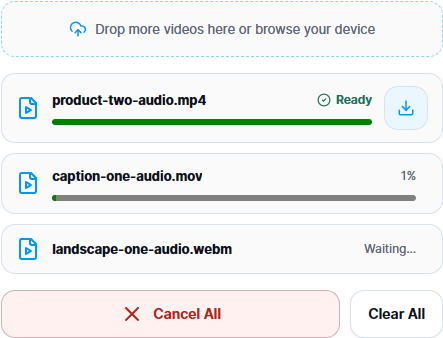
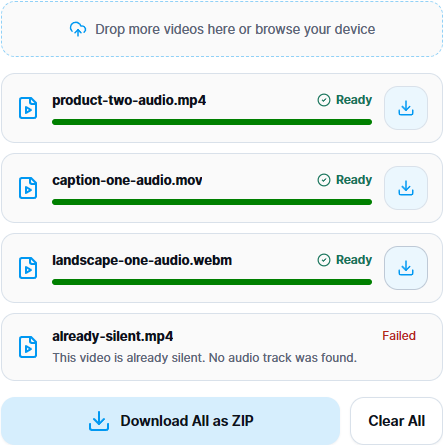
Selected files appear in the browser-local processing queue.Completed videos have individual download controls; multiple ready files can be saved as a ZIP.
Remove Audio from Video: Tested MP4, MOV and WebM Results
We tested three six-second video files with audio tracks: an MP4 with two tracks, a MOV with one, and a WebM with one. In this controlled test, each downloaded result contained zero audio tracks. All 180 encoded video packets in each output matched the corresponding input, showing that these samples retained their encoded pictures without re-encoding.
Test file
Audio tracks: input → output
Encoded video packets matched
MP4, two audio tracks
2 → 0
180 / 180
MOV, one audio track
1 → 0
180 / 180
WebM, one audio track
1 → 0
180 / 180
These results describe the tested files, not every possible codec or container. A video's container duration can differ slightly when an audio tail is removed; the tested WebM kept all video packets even though its reported container duration changed from 6.010 to 6.000 seconds. Unsupported files are rejected rather than silently re-encoded.
This tool is built for a simple job: remove audio from video without opening a full editing timeline. Add your supported clips, let the browser process them, and save silent copies.
Complete Audio Track Removal
The downloaded result contains no audio streams, not merely a muted playback setting. Speech, recorded music, microphone sound and additional embedded audio tracks are removed together. If you only want to turn down part of a soundtrack, use a timeline-based editor instead.
Preserve the Original Video Quality
For compatible files, the encoded video is copied without image re-compression. That preserves the video packets, resolution and frame rate rather than exporting a newly encoded picture. The tool reports an error when it cannot safely complete this process.
Private Processing in Your Browser
The selected video remains on your device. It is not sent to RemoveText.video for server processing, and the results are not saved to an online account. Download your completed files before refreshing or closing the tab.
Common Uses for Silent Video
A video without its original soundtrack is easier to reuse when the pictures are useful but the recorded audio is not.
Prepare Video for New Music or Voice-over
Remove audio from video before adding narration, translated speech or replacement music in another editor. Starting from a silent copy prevents the original recording from competing with the new track.
Create Silent B-roll and Background Video
Turn product footage, landscapes, interface recordings or motion graphics into silent visuals for websites, presentations and background displays where unexpected sound would be distracting.
Remove Unwanted Recorded Sound
If a clip contains conversation, microphone noise or notification sounds that you do not need at all, removing its complete audio track is simpler than trying to clean individual noises.
Prepare Clips for Sharing and Repurposing
Keep a silent copy for social posts, demos or future edits, and keep the source separately. You can add a new soundtrack later without changing the existing pictures.
Removing every audio track is different from reducing background noise, muting one segment, or keeping speech while removing music. This tool creates an entirely silent output; use an audio editor for selective changes.
Formats and Compatibility
You can process MP4, MOV and WebM videos, up to 20 files in one batch and 100 MB per file. Browser memory and the source video's actual codec or file structure still determine whether processing can succeed. A familiar file extension alone does not guarantee compatibility.
For supported inputs, the output keeps the corresponding video container extension and adds -no-audio to the filename. Successful files can be downloaded individually; when two or more completed results are available, they can also be saved together as a ZIP.
Troubleshooting Video Audio Removal
If a video cannot be processed, check the message shown next to that file. Successful results in the same batch remain available to download.
What you see
What to do
This video is already silent.
The file has no audio track to remove. Keep the original if you need that silent video; it will not produce a new output in the ZIP.
File larger than 100 MB.
Choose a smaller source or prepare a smaller version in an editor. Renaming the file will not make it smaller.
Unsupported format or video codec.
Export a compatible file from the source or use a desktop editor. Changing the extension alone does not convert the codec.
Browser ran out of memory.
Download completed files, close other tabs, and try fewer or smaller videos.
Output could not be verified.
Check that the source plays correctly and try a fresh export. Do not rely on an output that failed verification.
Save completed downloads before clearing the batch. Clearing the list removes the current downloadable results from the page.
Frequently Asked Questions
Can I remove audio from multiple videos at once?
Yes. You can add up to 20 files per batch. Videos are processed one after another on your device, and you can download completed files individually or together as a ZIP.
Is this video audio remover free?
Yes. You can remove audio from video online for free without creating an account, buying credits or adding a watermark to the output.
Is my video uploaded to a server?
No. This tool processes the selected file locally in your browser. The video itself is not uploaded to RemoveText.video for audio removal.
Will removing audio reduce video quality?
For supported files, the encoded video packets are copied without re-encoding, preserving picture quality, resolution and frame rate. Container-level duration metadata may differ slightly when an audio tail is removed.
Can I remove audio from only part of a video?
No. This tool removes audio for the full video. If you need to mute one section or preserve part of the soundtrack, use a timeline-based editor.
Which video formats are supported?
MP4, MOV and WebM are accepted, with a limit of 100 MB per file. Specific codecs and file structures may still be incompatible.
Does it work on iPhone, Android, Windows and Mac?
It can work in modern browsers on these devices when the input format is supported and enough memory is available. Larger batches may be easier to process on a desktop computer.
Can I restore the sound after removing it?
The downloaded silent copy no longer contains the original audio tracks. Keep your source file or reattach the original audio in an editor if you need it later.
What format will my silent video download as?
A successfully processed video keeps its supported MP4, MOV or WebM container extension, with -no-audio added to its name. Batch ZIP downloads contain the completed output files, not the originals.
Remove Audio from Your Videos
Remove audio from video online and create silent copies without uploading your files or reducing supported video quality. Choose up to 20 MP4, MOV or WebM videos, 100 MB each, and download the results directly from your browser.